FlightMission
Collision Prevention
Collision prevention can be used to automatically slow down and stop the drone before it collides with an obstacle. This feature can be enabled when a multirotor is using acceleration-based Position mode (or when a vertical takeoff and landing aircraft is in multirotor mode).
It can be enabled for multi-rotor aircraft in position mode and can use sensor data from an external companion computer, an external rangefinder via MAVLink, a rangefinder connected to the flight controller, or any combination of the above.
If the sensor range is not large enough, the collision prevention function may limit the drone's maximum speed! It will also prevent the drone from traveling in a direction where there is no sensor data (for example, if there is no rear sensor data, the drone will not be able to travel backward).
For more information, please refer to the official PX4 documentation : https://docs.px4.io/v1.16/en/computer_vision/collision_prevention
Precision Landing
The PX4 enables multi-rotor aircraft to accurately land on stationary or moving targets. Target information can be provided by onboard infrared sensors and landing beacons, or by an external positioning system.
Precision landing can be initiated/launched as part of a mission, or it can be initiated during a return-to-home landing, or by entering precision landing flight mode.
For more information, please refer to the official PX4 documentation : https://docs.px4.io/main/en/advanced_features/precland
Target Following
The "Follow Me" mode allows a multirotor to autonomously maintain its position and altitude relative to another system, which broadcasts its position (and optional speed) using the FOLLOW_TARGET MAVLink message.
information
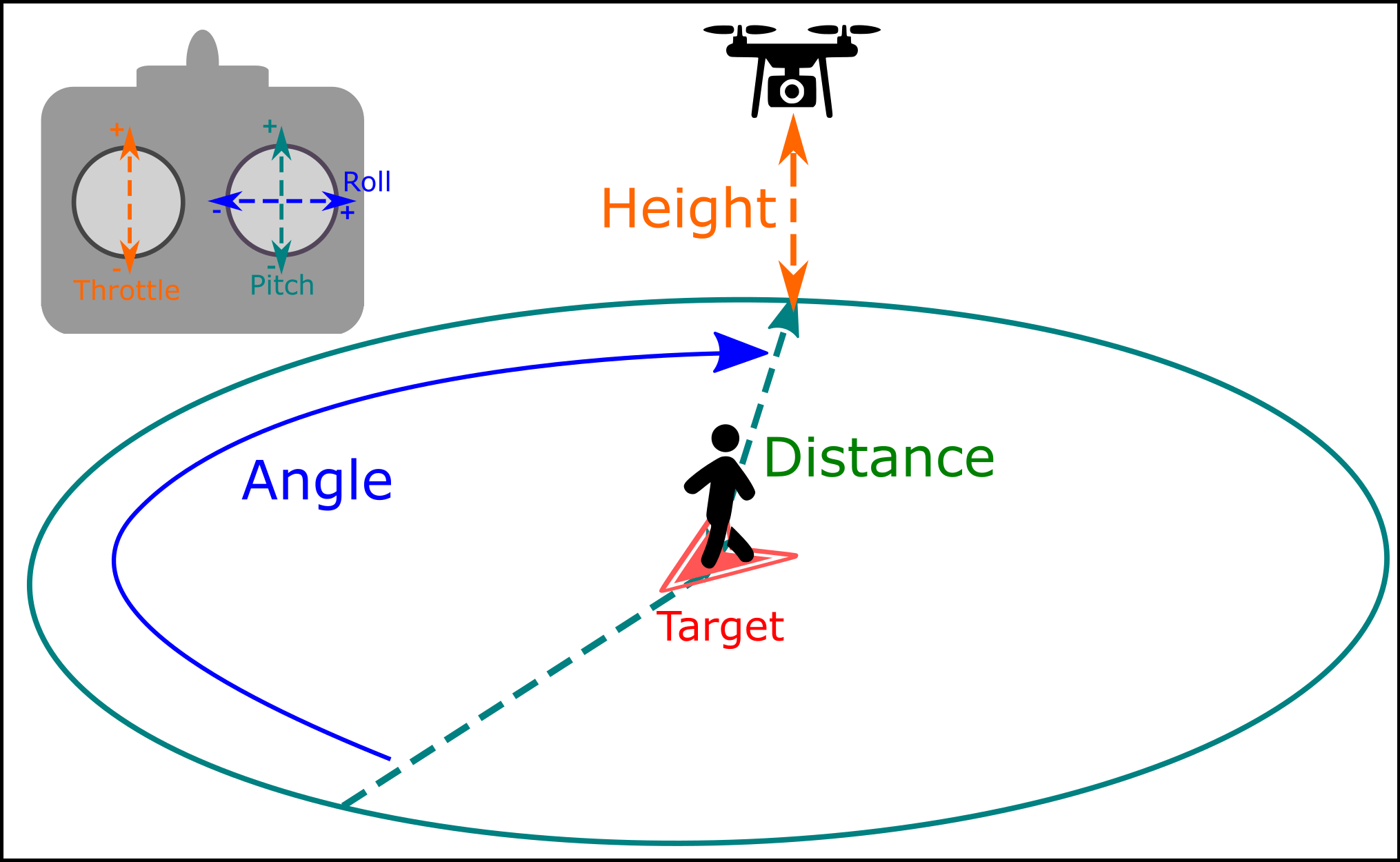
Depending on the altitude control mode, the vehicle will automatically yaw to face and track the target from the specified relative angle, distance, altitude, and elevation direction.
By default, it will follow from 8 meters directly behind the target, at a height 8 meters higher than the initial position (starting position).
Users can use the remote control shown in the image above to adjust the following angle, height, and distance:
- The following height is controlled by the throttle
up-down. Placing the joystick in the center position will keep the following target at a constant height. The height can be adjusted by moving the joystick up and down. - The follow distance is controlled by the input ("pitch")
forward-back. Pushing the joystick forward increases the follow distance, and pulling it back decreases the follow distance. - The follow angle is controlled by the "Roll" input
left-right. This movement is from the user's perspective, so if you face the drone and move the joystick to the left, the drone will move to your left. If you look down from above and move the joystick to the left, the drone will rotate counter-clockwise. The follow angle is defined as the angle that increases clockwise relative to the target heading (0 degrees).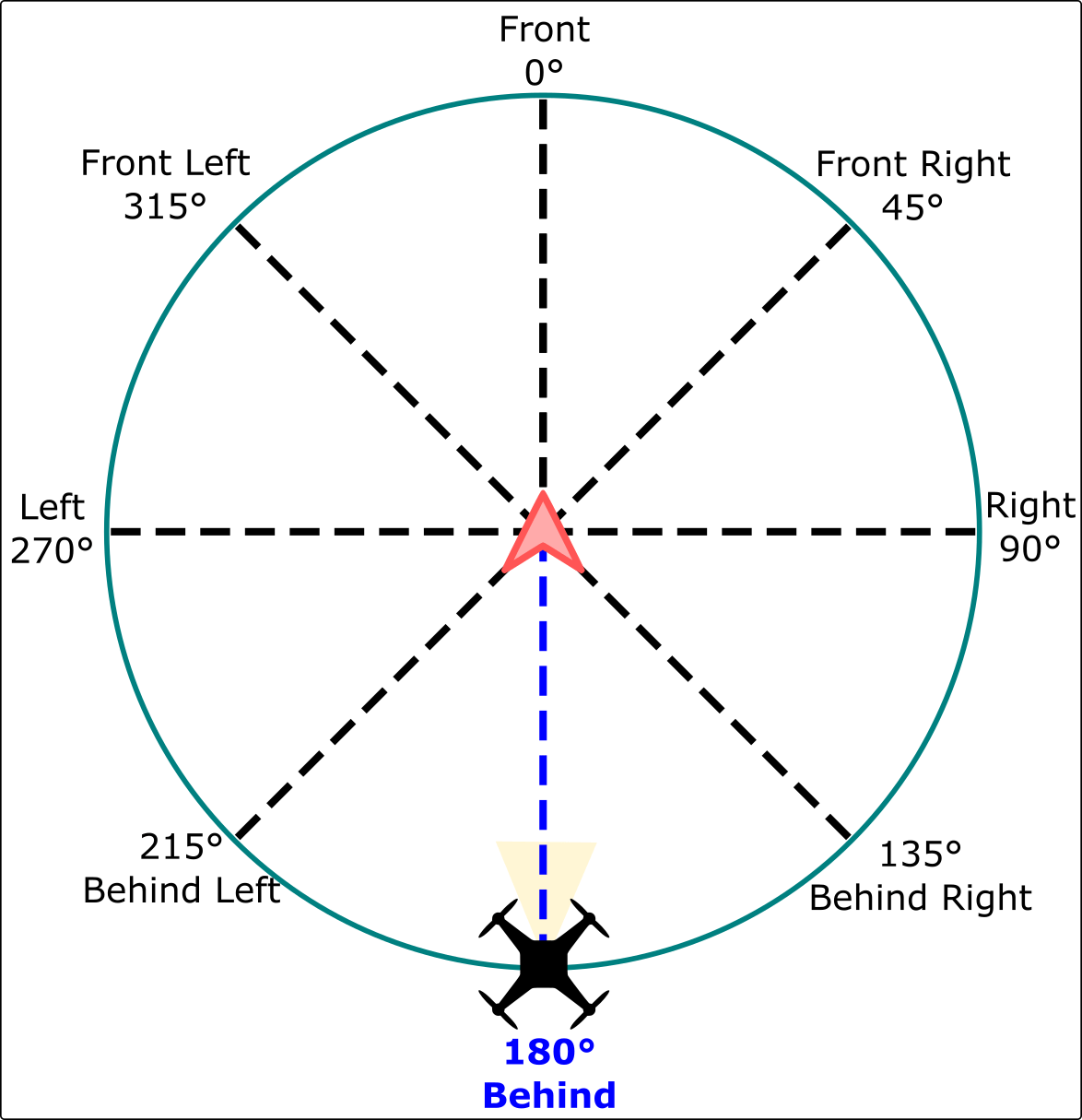
For more information, please refer to the official PX4 documentation : https://docs.px4.io/main/en/flight_modes_mc/follow_me
Terrain Following
The PX4 supports terrain following and terrain holding in position and altitude modes, and is suitable for multi-rotor aircraft with distance sensors and vertical take-off and landing aircraft in MC mode.
Terrain following allows the aircraft to automatically maintain a relatively constant altitude when flying at low altitudes. This is very useful for avoiding obstacles and maintaining a constant altitude when flying over complex terrain, such as for aerial photography.
When terrain following is enabled, the PX4 uses the output of an extended Kalman filter (EKF) estimator to provide a height estimate and uses the estimated terrain height (calculated from distance sensor measurements by another estimator) to provide a height setpoint. The height setpoint is adjusted as the distance from the ground changes to maintain a constant altitude.
In high-altitude areas (when the estimator reports invalid distance sensor data), the aircraft switches to altitude tracking mode, typically flying at a near-constant altitude (above mean sea level (MSL)) and using an absolute altitude sensor to acquire altitude data.
1 Enable terrain following by setting MPC_ALT_MODE.
For more information, please refer to the official PX4 documentation : https://docs.px4.io/main/en/flying/terrain_following_holding
Throw Launch
This feature was introduced in PX4 v1.15.
- Extensive testing has not yet been conducted in different vehicle configurations or scenarios.
- Most tests were conducted in Position mode. Other modes should also work.
This feature allows a multi-rotor aircraft to be launched from a fixed location and then launched into the air. The aircraft will only activate its motors after launch is detected and will operate according to its current mode.
After activating the launch function, the aircraft is initially in a "locked" state, and the propellers will not rotate. The propellers will only start after the aircraft is launched or disarmed, during which time an arming tone will continuously play. The aircraft will not automatically disarm after being armed; if you choose not to launch the aircraft, you must manually disarm it.
The vehicle determines whether it has been launched by detecting whether it has reached a certain speed (5 meters per second) and starts its motor at the highest point of the launch (once the fall is detected). You need to launch the vehicle high enough to stabilize it before it falls near crowds or obstacles.
Before testing, ensure the aircraft can take off in normal attitude or takeoff mode. Also, ensure the propellers do not rotate during startup after this function is enabled.
also:
- Wear protective equipment. It is recommended to wear goggles and work gloves.
- Equipped with an easy-to-operate and tested emergency stop switch. This reminds the operator to remain focused and use the emergency stop switch if necessary. Pilots often forget that vehicles are replaceable, but that's not the case!
- Conduct tests without using the propeller whenever possible. Keep propeller disassembly tools nearby or within easy reach.
- At least two people are needed to test this feature—one to operate the aircraft and the other to use the remote control.
- Please note that the exact flight path of the aircraft after being thrown can be difficult to predict, as it depends heavily on how it is thrown. Sometimes it will remain stationary, but sometimes (e.g., due to a large roll), it may drift to one side during stabilization. Please maintain a safe distance!
For the first flight of the new aircraft, we recommend conducting a propeller-less launch test.
For more information, please refer to the official PX4 documentation : https://docs.px4.io/main/en/flight_modes_mc/throw_launch
Air Traffic Avoidance
The PX4 supports simple air traffic avoidance when performing missions using ADS-B, FLARM, or UTM transponders with a standard MAVLink interface.
If a potential collision is detected, the PX4 can issue a warning, land immediately, or return (depending on the value of NAV_TRAFF_AVOID ).
The PX4 traffic avoidance function can be used with ADS-B or FLARM products that provide transponder data using the MAVLink ADSB_VEHICLE message, and with UTM products that provide transponder data using the MAVLink UTM_GLOBAL_POSITION message.
It has been tested using the following equipment:
- PingRX ADS-B Receiver (uAvionix)
- FLARM
For more information, please refer to the official PX4 documentation: https://docs.px4.io/main/en/peripherals/adsb_flarm#ads-b-flarm-utm-receivers-air-traffic-avoidance